Hatsune Miku
Teal-cyan vocaloid energy on your desktop.
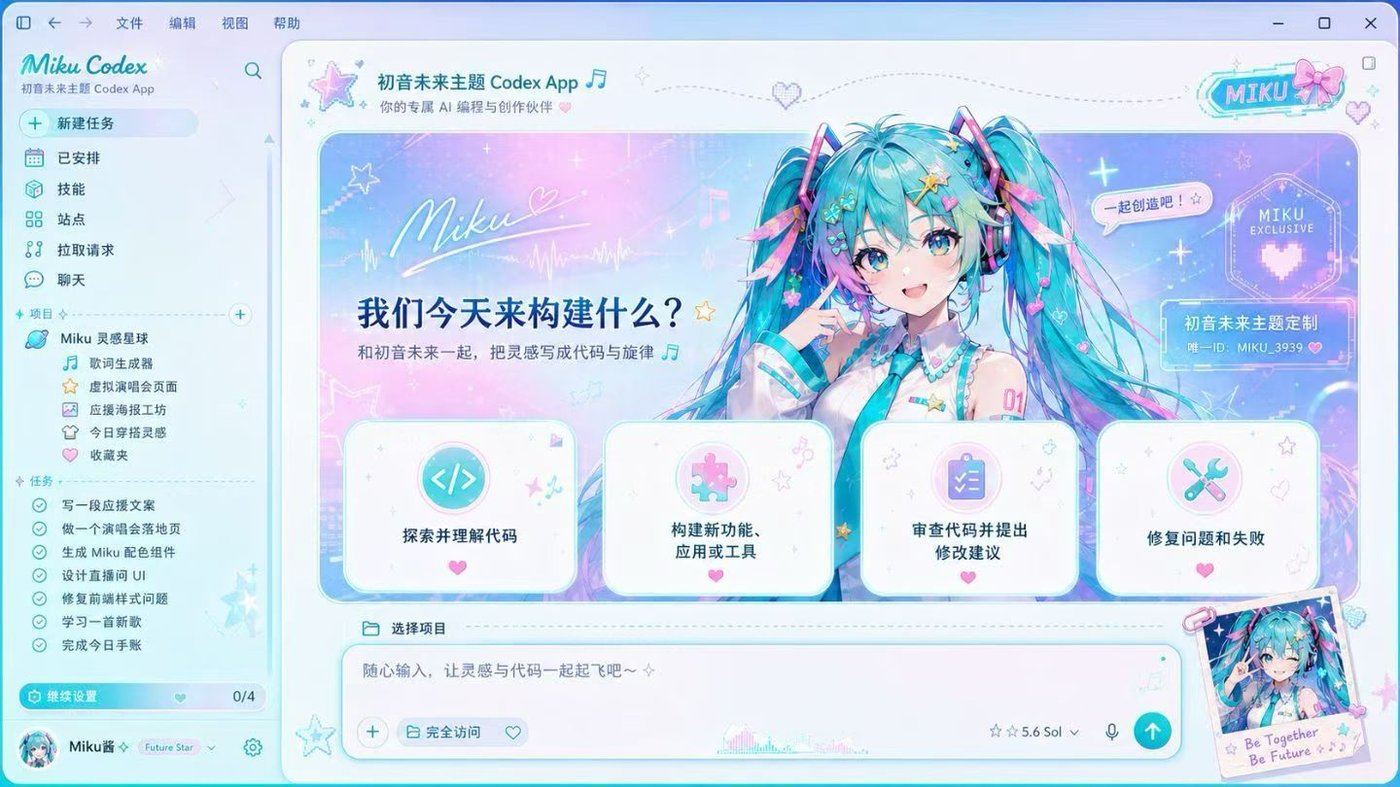
Prompt-ready built-in · One sentence
Copy this into Codex
This recreates the art direction with original, rights-cleared artwork and completes apply + verification.
Use $codedrobe-one-shot-theme from https://www.codexskins.org/SKILL.md to create and apply a Codex desktop theme inspired by “Hatsune Miku”, using https://www.codexskins.org/skins/skin-07.jpg as visual direction. Generate original, rights-cleared artwork instead of reproducing recognizable characters or logos. Keep the official app bundle untouched, verify Home, Task, composer and sidebar clicks, and deliver the shareable theme file plus the restore method.The iconic teal-and-cyan vocaloid palette applied to Codex. A fan-favorite demo of what one image can do — swap in your own fan art and the engine restyles banner, background, and frosted layers to match. Character art shown is illustrative only.
Get this look
Easiest way: say one sentence to Codex and it themes itself — see the one-sentence method →
- Download the Dream Skin engine Grab the open-source engine from GitHub — it provides the theming structure: banner, background, and the restyled shell.
- Run the installer for your OS macOS: double-click “Install Codex Dream Skin.command”. Windows: run install-dream-skin.ps1, then start-dream-skin.ps1.
- Apply your image Use the Customize command and pick this style’s artwork — or any image of your own. Wide images (≥ 2000px) work best.

Opens the Codex desktop app. No Codex yet? Copy the prompt above and paste it in. macOS guide → Windows guide →
More skins